Introduction
Cloud storage has become an essential part of modern digital life. Whether you are a student, freelancer, business owner, or office employee, storing files securely and accessing them from anywhere is now easier than ever. Instead of depending only on a computer’s hard drive or a USB flash drive, people can upload their documents, photos, videos, and other files to the cloud. This makes data available from any internet-connected device while also reducing the risk of losing important information.
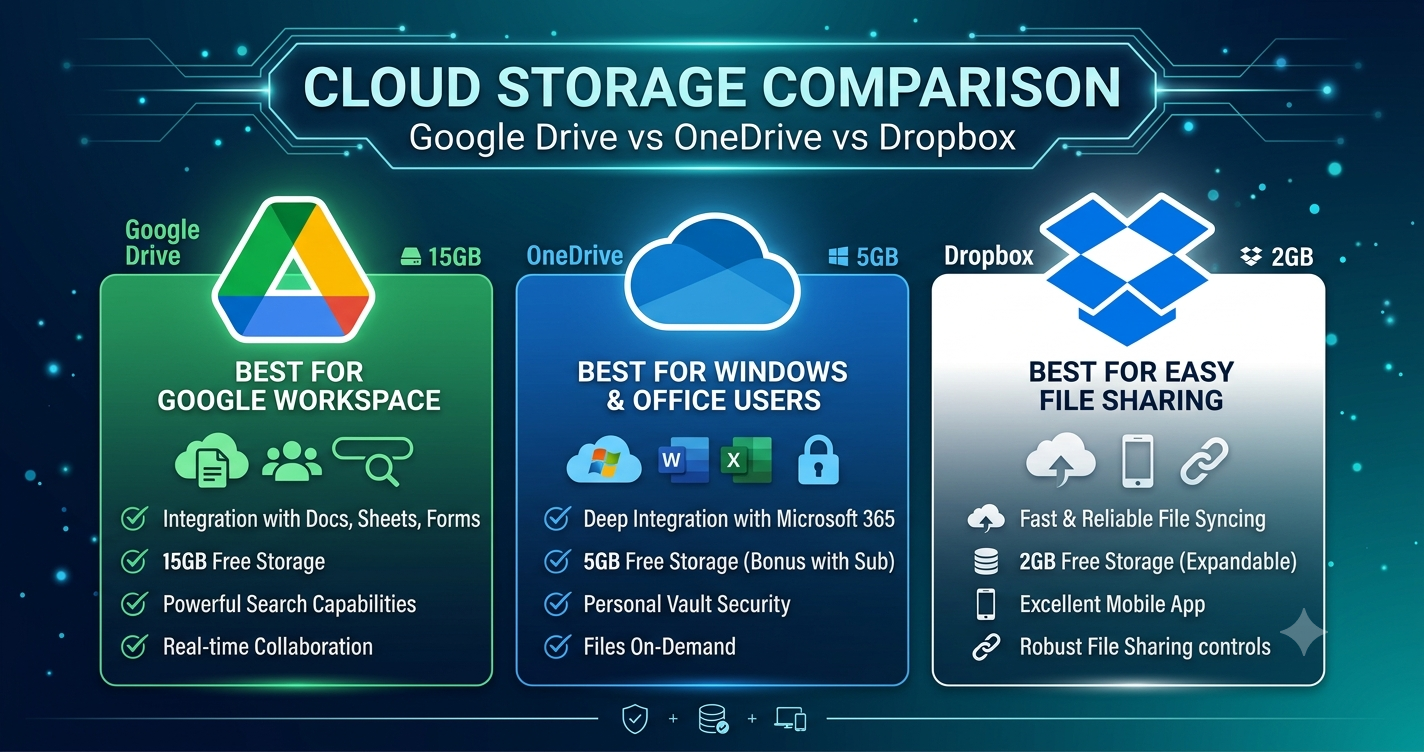
When discussing Cloud Storage Comparison, three names stand out: Google Drive, OneDrive, and Dropbox. Each service offers online storage, file sharing, synchronization across multiple devices, and collaboration tools. However, they differ in pricing, storage capacity, security, integration, and productivity features. Choosing the right platform depends on your requirements, budget, and the ecosystem you already use.
In this detailed Cloud Storage Comparison guide, we will compare Google Drive, OneDrive, and Dropbox in simple language. You will learn their strengths, weaknesses, key features, pricing considerations, and ideal use cases. By the end of this article, you will be able to choose the cloud storage service that best matches your personal or professional needs.
What is Cloud Storage Comparison?
Cloud Storage Comparison is the process of evaluating different cloud storage services based on important factors such as:
- Storage space
- Pricing
- Security
- Ease of use
- File sharing
- Collaboration features
- Device compatibility
- Backup options
- Speed and reliability
- Integration with other applications
Comparing these features helps users make informed decisions instead of selecting a service based only on popularity.
Why is Cloud Storage Comparison Important?
Choosing the wrong cloud storage platform can lead to unnecessary costs, limited storage, poor collaboration, or compatibility problems. A proper comparison helps users identify the platform that delivers the best value for their specific needs.
Some important reasons include:
- Save money by selecting the right plan.
- Protect valuable files with better security.
- Improve teamwork through collaboration tools.
- Access files from multiple devices.
- Reduce the chances of data loss.
- Increase productivity with integrated applications.
Detailed Step-by-Step Guide
Step 1: Compare Storage Capacity
The first thing to compare is the amount of storage each service provides.
Google Drive
Google Drive offers free storage for new users and paid plans for those needing additional space. It integrates with Google Photos and Gmail, making it suitable for users already using Google’s ecosystem.
Advantages:
- Easy file organization
- Excellent search functionality
- Smooth synchronization
- Reliable performance
OneDrive
OneDrive is Microsoft’s cloud storage platform. It integrates seamlessly with Windows and Microsoft Office applications, making it ideal for students, professionals, and businesses.
Advantages:
- Excellent Windows integration
- Automatic backup options
- Strong Office compatibility
- Easy file recovery
Dropbox
Dropbox is known for its reliable synchronization technology and simple interface. It focuses heavily on file sharing and collaboration.
Advantages:
- Fast syncing
- Easy sharing
- Reliable version history
- Cross-platform support
Step 2: Compare Ease of Use
All three services provide user-friendly interfaces.
Google Drive offers a clean design and works well with Google Docs, Sheets, and Slides.
OneDrive feels familiar to Windows users because it is built into the operating system.
Dropbox provides one of the simplest interfaces available, making it suitable even for beginners.
Step 3: Compare File Sharing
Each platform allows users to share files using links or permissions.
Google Drive allows users to choose between view, comment, and edit permissions.
OneDrive provides password protection and expiration dates on supported plans.
Dropbox offers advanced sharing controls and professional collaboration features.
Step 4: Compare Collaboration Tools
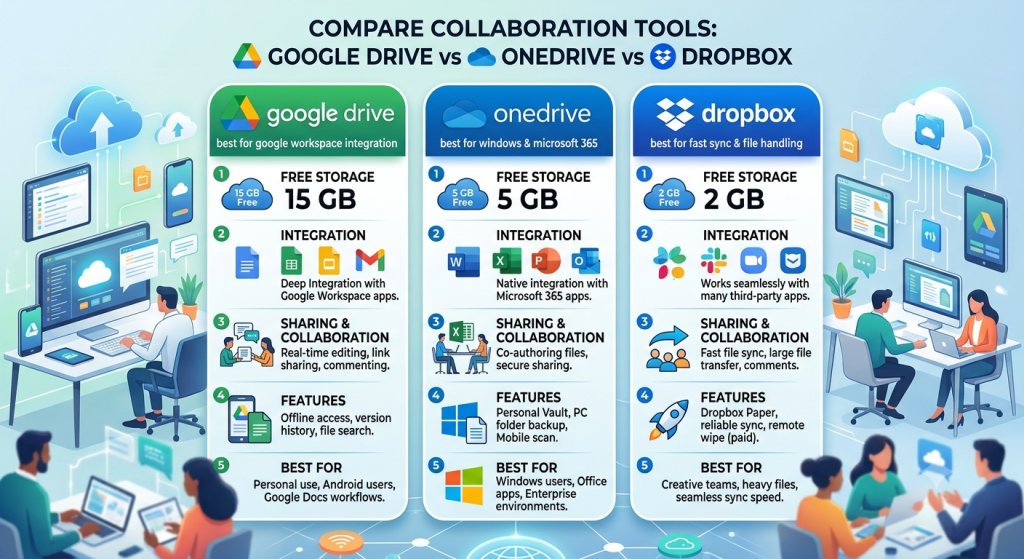
Google Drive performs exceptionally well for real-time collaboration.
OneDrive works perfectly with Microsoft Word, Excel, and PowerPoint.
Dropbox integrates with many third-party productivity applications, making teamwork efficient.
Step 5: Compare Security Features
Security is one of the most important factors when choosing cloud storage. Since your files are stored on remote servers, the platform should provide strong protection against unauthorized access and cyber threats.
Google Drive Security
Google Drive protects files with encryption during transfer and while stored on Google’s servers. Users can enable two-factor authentication (2FA) to add an extra layer of security. Google also monitors suspicious login attempts and alerts users if unusual activity is detected.
Best for:
- Personal users
- Students
- Small teams
- Google Workspace users
OneDrive Security
OneDrive includes advanced security features, especially for Microsoft 365 subscribers. It offers ransomware detection, Personal Vault for sensitive files, and file recovery options. Microsoft also provides encryption for stored and transferred files.
Best for:
- Windows users
- Office professionals
- Businesses
- Corporate environments
Dropbox Security

Dropbox protects user data with strong encryption and supports two-factor authentication. It also includes version history, allowing users to recover previous versions of files if they are accidentally modified or deleted.
Best for:
- Freelancers
- Creative professionals
- Remote teams
- Cross-platform users
Step 6: Compare Pricing
Pricing is another important factor in this Cloud Storage Comparison.
Google Drive
Google Drive offers a free plan with limited storage. Paid Google One plans provide additional storage along with extra benefits such as family sharing and premium support.
Ideal for:
- Budget-conscious users
- Families
- Students
OneDrive
OneDrive also provides free storage. Microsoft 365 subscriptions include larger storage along with Microsoft Word, Excel, PowerPoint, Outlook, and other productivity applications.
Ideal for:
- Office users
- Business professionals
- Windows users
Dropbox
Dropbox offers a free plan with limited storage and several premium plans for individuals and businesses. While it may cost more than some competitors, it provides powerful collaboration and synchronization features.
Ideal for:
- Businesses
- Designers
- Agencies
- Professional teams
Benefits of Cloud Storage Comparison
Comparing cloud storage services before choosing one offers many advantages.
- Helps select the right service based on your needs.
- Saves money by avoiding unnecessary subscriptions.
- Improves file security.
- Makes collaboration easier.
- Ensures compatibility with your devices.
- Reduces the risk of data loss.
- Increases productivity.
- Makes remote work more efficient.
- Simplifies file sharing.
- Provides better long-term value.
Disadvantages / Risks
Although cloud storage provides many benefits, users should also understand its limitations.
- Requires an internet connection for full functionality.
- Subscription costs may increase over time.
- Free plans usually have limited storage.
- Uploading very large files can take time.
- Privacy depends on the provider’s policies.
- Account compromise may expose sensitive files if security is weak.
- Vendor lock-in may occur when switching platforms.
Common Mistakes to Avoid
Many users choose cloud storage without comparing important features. Avoid these common mistakes:
- Choosing only based on free storage.
- Ignoring security features.
- Not enabling two-factor authentication.
- Forgetting to organize folders properly.
- Ignoring backup and recovery options.
- Sharing files with incorrect permissions.
- Purchasing more storage than necessary.
- Not checking compatibility with existing software.
- Ignoring collaboration features.
- Failing to compare pricing before subscribing.
Which cloud storage service is best for beginners?
Google Drive is often considered the best option for beginners because of its simple interface, easy navigation, and seamless integration with Google Docs, Sheets, Gmail, and other Google services. It requires very little learning time and works well on computers, smartphones, and tablets.
Is OneDrive better than Google Drive?
It depends on your needs. OneDrive is an excellent choice for users who frequently work with Microsoft Offihttps://en.wikipedia.org/wiki/Microsoft_Officece applications like Word, Excel, and PowerPoint. Google Drive is better for users who rely on Google Workspace and real-time collaboration.
Why do many businesses use Dropbox?
Dropbox is popular among businesses because of its reliable synchronization, advanced file-sharing options, version history, and collaboration tools. It also integrates with many third-party applications, making team workflows more efficient.
Which cloud storage service offers the best security?
All three services provide strong security features, including encryption and two-factor authentication. OneDrive offers additional business-focused features such as Personal Vault and ransomware detection, while Google Drive and Dropbox also provide excellent protection for personal and professional users.
Can I use more than one cloud storage service?
Yes. Many users combine multiple services for different purposes. For example, they may use Google Drive for collaboration, OneDrive for Microsoft Office documents, and Dropbox for sharing large files with clients.
Which cloud storage service offers the best value?
The answer depends on your requirements. Google Drive offers great value for personal users, OneDrive is ideal for Microsoft Office subscribers, and Dropbox provides outstanding collaboration features for professional teams.
Expert Tips & Bonus Points
Choosing the right cloud storage platform becomes easier when you focus on your daily workflow instead of just comparing storage space.
Expert recommendations include:
- Enable two-factor authentication for better security.
- Organize files into clear folders.
- Delete unnecessary files regularly.
- Back up important documents in more than one location.
- Review sharing permissions before sending links.
- Compare subscription plans carefully.
- Choose a platform that integrates with your existing software.
- Keep your applications updated for improved security.
- Use automatic synchronization to avoid losing recent work.
- Test the free version before purchasing a premium plan.
Conclusion
Cloud storage has transformed the way individuals and businesses store, manage, and share digital files. Instead of relying only on physical storage devices, users can now access their documents, photos, videos, and important data securely from almost anywhere. However, selecting the right provider requires a careful Cloud Storage Comparison because each platform offers unique strengths and features.
Google Drive is an excellent choice for users who depend on Google Workspace and real-time collaboration. OneDrive stands out for Windows users and professionals who work extensively with Microsoft Office applications. Dropbox remains one of the best options for businesses, freelancers, and teams that require fast synchronization and advanced file-sharing capabilities.
Before making your final decision, evaluate your storage requirements, budget, preferred productivity tools, collaboration needs, and security expectations. Comparing these factors will help you invest in the service that delivers the best overall value.
Ultimately, there is no single cloud storage solution that fits everyone. The best option is the one that aligns with your workflow, protects your data, and supports your personal or professional goals. By following this Cloud Storage Comparison guide, you can confidently choose between Google Drive, OneDrive, and Dropbox while ensuring your files remain secure, accessible, and easy to manage for years to come.