Introduction
Creating high-quality videos has become easier than ever, thanks to the growing number of free editing tools available online. Whether you are a student, content creator, business owner, teacher, or social media enthusiast, editing videos professionally no longer requires expensive software or advanced technical skills. Today, you can find excellent free video editing software without watermark that allows you to produce polished videos without paying for premium subscriptions or displaying unwanted branding.
Many beginners believe that free software always comes with limitations, but that is no longer true. Several modern video editors provide advanced features such as timeline editing, transitions, color correction, audio enhancement, text animations, and even support for high-resolution exports. The biggest advantage is that you can create professional-looking videos without having a distracting watermark appear on your final project.
Choosing the right editing software, however, can be confusing because hundreds of options are available. Some programs focus on simplicity, while others offer professional editing tools suitable for YouTube videos, presentations, tutorials, marketing content, and short-form social media clips.
This guide explains everything you need to know about free video editing software without watermark, including its features, benefits, selection process, and practical editing steps. By the end of this article, you will understand which software best suits your needs and how to edit videos efficiently without spending money or sacrificing quality.
What is Free Video Editing Software Without Watermark?
Free video editing software without watermark refers to video editing applications that allow users to edit and export videos without adding the software company’s logo or branding to the finished file.
Unlike many free trial versions that place large watermarks across exported videos, these editors let users create clean, professional-looking content without paying for a license.
Most free editors include features such as:
- Video trimming
- Splitting and merging clips
- Adding transitions
- Text and title creation
- Background music support
- Audio editing
- Speed control
- Filters and visual effects
- Exporting in HD or even 4K resolution
These tools are suitable for beginners while also offering advanced capabilities for experienced editors.
Some software focuses on fast editing for social media, whereas others are designed for filmmaking, educational content, or business presentations.
Why is Free Video Editing Software Without Watermark Important?
Using free video editing software without watermark offers many advantages beyond simply saving money.
First, it allows creators to publish professional videos without unwanted logos covering important visuals. A watermark can reduce the credibility of business presentations, YouTube content, educational videos, and promotional material.
Second, beginners can learn editing without investing in expensive subscriptions. They can practice trimming clips, adding music, creating transitions, and exporting projects while developing valuable editing skills.
Another important benefit is flexibility. Many free editors support multiple video formats, making it easier to work with footage captured from smartphones, DSLR cameras, webcams, and screen recording software.
Professional-looking videos also improve audience engagement. Whether uploading tutorials, product demonstrations, travel vlogs, or classroom lessons, clean videos help viewers focus on the content instead of distracting branding.
Finally, watermark-free software enables creators to build their personal or business brand consistently. Every exported video represents their work rather than promoting another company’s software.
Detailed Step-by-Step Guide
Step 1: Define Your Editing Goals
Before downloading any software, decide what kind of videos you want to create.
Ask yourself:
- Are you editing YouTube videos?
- Do you create Instagram Reels?
- Will you produce educational tutorials?
- Are you making business presentations?
- Do you edit gaming videos?
- Do you create family memories?
Understanding your purpose helps narrow your software choices.
For example:
- Beginners often prefer simple editors with drag-and-drop features.
- YouTubers may need multi-track editing.
- Businesses often require text animation and branding tools.
- Teachers may prioritize screen recording compatibility.
Having clear goals prevents unnecessary learning and saves time.
Step 2: Choose the Right Software
Not every free editor offers the same features.
When comparing options, consider these important factors:
Ease of Use
A clean interface helps beginners edit videos faster without becoming overwhelmed.
No Export Watermark
Always verify that the software exports videos without adding branding.
Export Quality
Choose software supporting at least:
- 1080p Full HD
- 60 FPS (if needed)
- 4K support for future projects
- Editing Features
Look for:
- Multi-track timeline
- Transitions
- Effects
- Text overlays
- Color adjustment
- Audio editing
- Motion controls
- Device Compatibility
Some editors work only on Windows, while others support macOS or Linux as well.
Cloud-based editors may also allow editing from multiple devices.
Regular Updates
Frequently updated software receives bug fixes, improved performance, and new editing tools.
Step 3: Install the Software Properly
After selecting your preferred editor, install it carefully.
Follow these basic steps:
- Download the installer from the official website.
- Verify your system meets the minimum requirements.
- Complete installation.
- Launch the software.
- Configure language and basic preferences.
- Update to the latest version if available.
Avoid downloading software from unknown websites because unofficial installers may contain malware or outdated versions.
Once installed, spend a few minutes exploring the interface before beginning your first project.
Become familiar with:
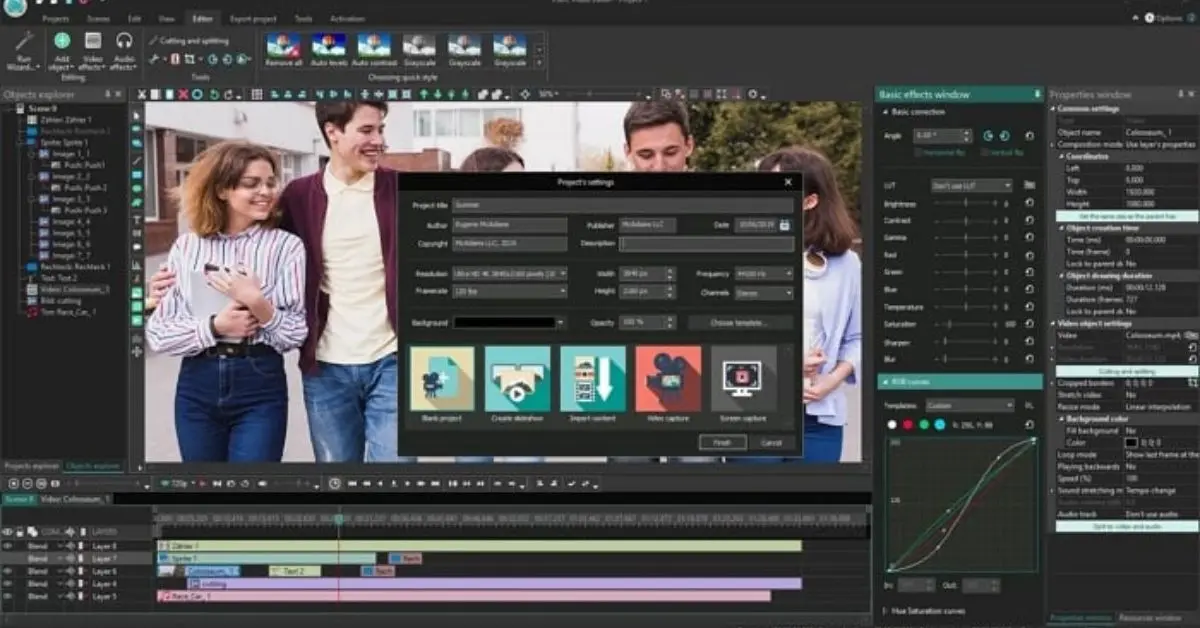
- Timeline
- Media library
- Preview window
- Audio controls
- Export settings
- Effects panel
- Toolbar
Learning where these tools are located will make future editing much easier.
Step 4: Import and Organize Your Media Files
A well-organized project saves significant editing time.
Create folders before importing videos.
Example project structure:
- Video clips
- Images
- Music
- Voice recordings
- Sound effects
- Logos
- Exported videos
Next, import everything into your editing software.
Arrange clips in chronological order before placing them on the timeline.
Rename confusing file names such as “VID_001” into descriptive titles like:
- Intro
- Product Demo
- Tutorial Part 1
- Closing Scene
This organization makes larger editing projects much easier to manage.
Many beginners skip this step and later spend unnecessary time searching for files instead of editing.
Step 5: Trim and Arrange Your Clips
Once your media files are organized, begin editing by placing the clips on the timeline. Watch every clip carefully and remove unnecessary sections such as long pauses, mistakes, shaky footage, or repeated scenes.
Arrange the remaining clips in a logical sequence. If you are creating a tutorial, ensure each step follows naturally. For travel videos, place scenes in chronological order. For promotional videos, start with the most engaging footage to capture attention immediately.
Keep your edits smooth and avoid making every clip too long. Short, focused clips maintain viewer interest and improve the overall viewing experience.
Step 6: Add Transitions and Visual Effects
Transitions connect one clip to another and make the video feel polished. While many editing programs include dozens of transition styles, using only a few simple ones usually produces the best results.
Popular transitions include:
- Fade
- Dissolve
- Crossfade
- Slide
- Wipe
Avoid adding a different transition between every clip. Too many effects can distract viewers from your message.
You can also improve your video with subtle visual enhancements such as:
- Brightness adjustment
- Contrast correction
- Saturation improvement
- Sharpening
- Basic color grading
Use these effects carefully to create a clean and natural appearance rather than an overly edited look.
Step 7: Improve Audio Quality

Excellent audio is just as important as clear video. Viewers are more likely to stop watching if the sound is difficult to hear or contains excessive background noise.
Most free video editing software without watermark includes useful audio tools such as:
- Volume adjustment
- Noise reduction
- Audio fading
- Equalizer settings
- Voice enhancement
If your project includes background music, lower its volume during spoken sections so that narration remains easy to understand.
Whenever possible, use a separate microphone while recording because good source audio requires less editing later.
Step 8: Add Titles, Text, and Captions
Text helps viewers understand your content and makes videos more engaging.
Common text elements include:
- Opening titles
- Speaker names
- Chapter headings
- Call-to-action messages
- End screens
- Subtitles
Choose clear fonts that remain readable on both computers and smartphones.
Keep text on the screen long enough for viewers to read comfortably. Avoid using too many font styles or bright colors within the same project because consistency creates a more professional appearance.
Captions are especially useful because many people watch videos without sound on social media platforms.
Step 9: Preview and Make Final Adjustments
Before exporting your project, watch the entire video from beginning to end.
Check for common issues such as:
- Misspelled text
- Audio cuts
- Uneven volume
- Missing transitions
- Incorrect clip order
- Color inconsistencies
- Black frames
- Timing problems
Taking a few extra minutes to review your work can prevent noticeable mistakes from appearing in the final version.
If possible, ask a friend or colleague to watch the video and provide honest feedback. A fresh perspective often identifies small errors that the editor may overlook.
Step 10: Export the Video Using the Best Settings
After completing your edits, export the project using settings that balance quality and file size.
Recommended export settings include:
- Resolution: 1920 × 1080 (Full HD)
- Frame Rate: 30 FPS or 60 FPS
- Format: MP4
- Codec: H.264
- High-quality bitrate
If your audience mainly watches videos on mobile devices, optimize the file size without sacrificing visual quality.
Save the finished project separately from the exported video so you can make future edits if needed.
Finally, watch the exported file before publishing it to ensure everything appears exactly as intended.
Benefits of Free Video Editing Software Without Watermark

Using free video editing software without watermark offers several practical advantages for beginners and experienced creators alike.
Completely free to use without requiring expensive subscriptions.
Exports videos without distracting logos or branding.
Suitable for YouTube, presentations, tutorials, and social media content.
Helps beginners learn professional editing skills.
Supports multiple video formats.
Includes essential editing features like trimming, transitions, and text.
Many programs provide color correction and audio editing tools.
Saves money for students, freelancers, and small businesses.
Makes professional video production accessible to everyone.
Regular software updates often introduce new features and performance improvements.
Many editors support high-definition and even 4K video exports.
Allows creators to develop a unique visual style without software branding affecting the final product.
Disadvantages / Risks
Although these editors provide impressive capabilities, they also have a few limitations.
- Some advanced features remain locked behind premium versions.
- Professional visual effects may be limited.
- Certain programs require powerful computers for smooth performance.
- Rendering large projects can take longer on older systems.
- Free software may offer fewer templates than paid alternatives.
- Beginners may need time to learn the editing interface.
- Some applications display advertisements inside the software, although exported videos remain watermark-free.
- Not every editor receives frequent updates, so compatibility with the latest operating systems may vary.
Understanding these limitations helps users choose software that matches their needs and expectations.
Common Mistakes to Avoid
Many beginners make simple mistakes that reduce the quality of their videos. Fortunately, these problems are easy to avoid with careful planning.
One common mistake is choosing software based only on popularity. Instead, compare features, ease of use, export quality, and system compatibility before downloading.
Another mistake is using too many transitions, animations, and visual effects. Excessive effects make videos look unprofessional and distract viewers from the main content.
Poor audio is another frequent issue. Even if your video looks excellent, unclear sound can reduce viewer engagement. Always review audio levels before exporting.
Many creators also forget to organize their project files. A cluttered project makes editing slower and increases the chance of missing important clips.
Skipping the preview stage is another costly mistake. Watching the complete project before exporting helps identify timing issues, spelling errors, missing transitions, or inconsistent colors.
Finally, avoid exporting videos using unnecessarily high settings if they will only be shared online. Balanced export settings produce excellent quality while keeping file sizes manageable.
FAQs
What is the best free video editing software without watermark for beginners?
The best choice depends on your editing needs and computer specifications. Beginners should look for software with a simple interface, drag-and-drop functionality, and basic editing tools like trimming, transitions, text overlays, and audio editing. Programs that offer tutorials and regular updates are especially helpful for new users. Start with a simple editor, and as your skills improve, move to software with more advanced features.
Can I edit professional videos using free software?
Yes. Many free video editors include features that were once available only in premium applications. You can create YouTube videos, online courses, business presentations, product demonstrations, travel vlogs, and social media content with professional quality. Success depends more on your editing skills, storytelling, and creativity than on the price of the software.
Is free video editing software safe to download?
Yes, as long as you download it from the official website. Avoid unofficial download pages because they may include outdated installers or harmful software. Before installing any program, check your system requirements and keep your operating system updated for the best performance and security.
Will exported videos lose quality?
Not necessarily. Most modern free editors allow you to export videos in Full HD, and many even support 4K resolution. Choosing the correct export settings, resolution, and bitrate helps preserve image quality. High-quality source footage also plays an important role in achieving professional results.
Can I use free video editing software for YouTube?
Absolutely. Many successful YouTube creators started with free editing software. These programs provide everything needed for creating engaging videos, including trimming, transitions, titles, subtitles, background music, and audio enhancement. As your channel grows, you can decide whether upgrading to premium software is necessary.
How can I make my videos look more professional?
Focus on clear storytelling, smooth transitions, balanced audio, readable text, and consistent colors. Keep your editing simple instead of relying on excessive effects. Use high-quality footage whenever possible, organize your project files, and always preview your final video before exporting.
Expert Tips & Bonus Points
Improving your editing skills takes practice, but following a few professional habits can significantly enhance your results.
- Plan your video before you begin editing.
- Write a simple script or outline to stay organized.
- Keep clips short and engaging to maintain viewer attention.
- Use consistent fonts, colors, and transitions throughout the project.
- Balance music and voice levels carefully so dialogue remains clear.
- Save your project frequently to avoid losing progress.
- Keep backup copies of important footage on an external drive or cloud storage.
- Learn keyboard shortcuts to speed up your editing workflow.
- Create custom templates for intros, outros, and title screens if you produce videos regularly.
- Update your editing software to access new features and security improvements.
- Practice color correction gradually instead of applying heavy filters.
- Review successful videos in your niche to understand effective pacing and storytelling.
- Export a short test version before rendering long projects to ensure your settings are correct.
- Continue learning through practice and experimentation. Small improvements with every project will eventually lead to professional-quality videos.
Remember that great editing is not about using every available feature. It is about presenting your message clearly, maintaining a smooth flow, and keeping viewers engaged from beginning to end.
Conclusion
Choosing the right free video editing software without watermark can make a significant difference in the quality of your videos without increasing your budget. Whether you are creating educational content, YouTube videos, business presentations, social media posts, or personal projects, today’s free editing tools provide impressive features that were once available only in expensive software.
The key to success is selecting software that matches your experience level and project requirements. A beginner may benefit from a simple interface with essential editing tools, while more experienced creators may prefer advanced features such as multi-track editing, color correction, and detailed audio controls. Regardless of the software you choose, developing strong editing habits is equally important. Organizing your files, planning your project, maintaining consistent audio and visual quality, and reviewing the final video before export will help you produce polished results.
As your confidence grows, continue exploring new techniques and features to refine your editing style. Regular practice will improve both your speed and creativity, allowing you to create content that captures attention and delivers your message effectively.
With the knowledge shared in this guide, you are now prepared to choose the best free video editing software without watermark, edit videos with confidence, and produce professional-quality content without paying for expensive subscriptions or worrying about unwanted watermarks.