Introduction
- In today’s digital world, files have become an essential part of everyday life. People create, download, store, and share thousands of files every year, including documents, images, videos, presentations, software packages, and personal records. While technology has made it easier than ever to create and access digital content, it has also created a new challenge: managing large file sizes.
- A single high-quality video, a collection of high-resolution photos, or a large project folder can quickly consume valuable storage space. For many users, this leads to problems such as slow uploads, limited device storage, longer download times, and difficulty sharing files with others. Fortunately, file compression tools provide a simple and effective solution for reducing file size without creating unnecessary complications.
- A file compression tool is software designed to decrease the size of digital files by using advanced techniques to organize data more efficiently. These tools analyze information inside a file and remove unnecessary elements or reduce repeated data patterns. The result is a smaller file that takes up less storage space and can be transferred more quickly.
- File compression has become useful for almost everyone, from beginners managing personal files to professionals handling large amounts of business data. Students use compression to submit assignments and organize study materials. Businesses rely on compression software to share reports, store archives, and manage important documents. Content creators use compression methods to handle large media files without overwhelming their storage systems.
- The need for efficient file management continues to increase because digital content is growing rapidly. Modern cameras capture larger images, smartphones record higher-quality videos, and applications produce bigger files than ever before. Without proper organization, devices can become filled with unnecessary data, making it harder to find important information and maintain smooth performance.
- This is why learning about the best file compression tools to reduce file size can make a major difference. Instead of deleting valuable files or constantly purchasing additional storage, users can compress existing data and make better use of available resources. Compression provides a practical way to control digital clutter while keeping important information safe.
- One of the biggest advantages of using a file compression tool is convenience. Imagine needing to send a folder containing dozens of documents to a colleague or friend. Sending each file separately can be time-consuming and confusing. By compressing the folder, all files can be combined into one organized package that is easier to upload, download, and share.
- Compression is also extremely valuable for online communication. Many email services limit the maximum attachment size users can send. Large files may fail to upload or require additional steps before sharing. A compressed archive can often reduce the size enough to make the file transfer possible without using complicated alternatives.
- Another important benefit is storage optimization. Computers, external drives, and cloud storage platforms all have limited capacity. When storage space becomes full, users may experience slower performance and may need to remove files they still need. Using a compression program helps create extra room by reducing the size of stored data.
- For example, a photographer may have thousands of images saved on a computer. Instead of removing older photos, they can organize and compress them to free space. Similarly, a company can compress old project folders and store them efficiently while keeping important records available for future use.
- There are different types of file compression methods, and understanding them helps users choose the right approach. Lossless compression reduces file size while keeping every piece of original information intact. This method is commonly used for documents, spreadsheets, software files, and other content where accuracy is important.
- On the other hand, lossy compression reduces file size by removing certain information that may not be necessary. This approach is often used for images, audio, and videos because it can create much smaller files while maintaining acceptable quality. The best option depends on whether preserving every detail or achieving the smallest possible size is more important.
- Modern compression tools offer many useful features beyond basic size reduction. Many programs allow users to create password-protected archives, split large files into smaller parts, and select different compression levels. These options make compression suitable for both simple personal tasks and advanced professional workflows.
- However, choosing the right software matters. Not every compression tool offers the same performance, security, or compatibility. Some programs focus on simplicity, making them ideal for beginners, while others provide advanced settings for users who need greater control over their files.
- When selecting a compression solution, users should consider factors such as supported formats, compression speed, security features, and ease of use. A good tool should make the process simple without requiring technical knowledge. At the same time, it should provide enough flexibility for users who want more control.
- This article explores the top file compression tools to reduce file size and explains how they work, why they are important, and how they can improve everyday file management. Whether you are trying to save storage space, speed up file sharing, or organize your digital life, compression tools can provide a practical and reliable solution.
- By understanding how compression works and using the right software, anyone can manage files more efficiently. Instead of struggling with oversized files, users can take advantage of technology to store, share, and protect their data in a smarter way. File compression is not just about making files smaller; it is about creating a faster, cleaner, and more organized digital experience.
What is File Compression?
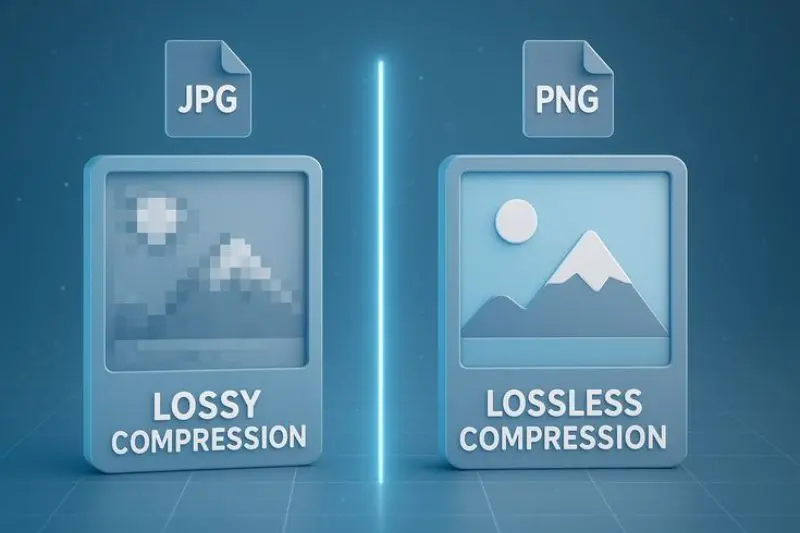
- File compression is the process of reducing the size of a digital file by removing unnecessary data or reorganizing information more efficiently. The main goal is to make files smaller so they require less storage space and can be transferred faster.
- A file compression tool uses special algorithms to analyze data and create a smaller version of the original file. When needed, the compressed file can be restored through a process called extraction or decompression.
- There are two main types of compression:
Lossless Compression
Lossless compression reduces file size without removing any original information. After decompression, the file returns exactly to its original form.
Common examples include:
- ZIP files
- Text documents
- Software packages
- Spreadsheets
- Some image formats
Lossless compression is ideal when accuracy is important.
For example, a business document containing financial information should maintain all details after compression. Removing even small pieces of data could create errors, so lossless methods are preferred.
Lossy Compression
Lossy compression reduces file size by removing some unnecessary information. The result is usually a much smaller file, but the original quality may slightly decrease.
Common examples include:
- Photos
- Videos
- Audio files
For instance, a high-resolution image can often be compressed significantly because some visual details are not noticeable to the human eye.
Choosing between lossless and lossy compression depends on your specific needs. If quality must remain unchanged, lossless compression is the better option. If saving maximum space is the priority, lossy compression may be more suitable.
Why is File Compression Important?
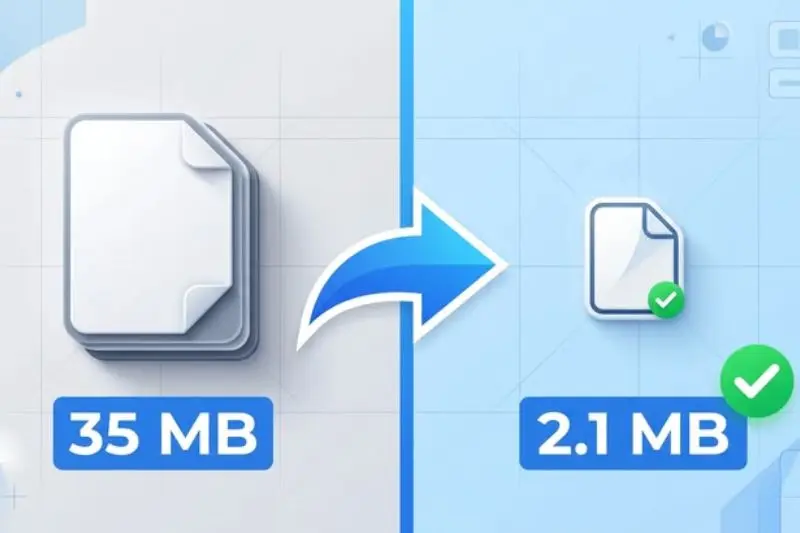
The importance of file compression tools continues to grow as people create and store more digital content every day. From personal photos to business records, files are becoming larger and harder to manage.
Using compression software provides several practical advantages.
Saves Storage Space
One of the biggest reasons people use a file compression tool is to save storage capacity. Large files can quickly fill up hard drives, external devices, and cloud accounts.
Compressing files allows users to keep more data without constantly removing old content.
For example, a folder containing thousands of images may take several gigabytes of space. After compression, the same collection may require significantly less storage.
Faster File Sharing
Large files often take longer to upload and download. This can become frustrating when sending attachments through email or sharing files online.
Compressed files are smaller, which means:
- Faster uploads
- Faster downloads
- Easier sharing
- Less waiting time
This is especially helpful for remote workers, students, and businesses that regularly exchange digital files.
Better Organization
Compression helps users organize multiple files into a single package. Instead of sending dozens of separate documents, you can combine them into one compressed folder.
For example, a project folder containing:
- Reports
- Images
- Presentations
- Spreadsheets
can be compressed into one file for easier management.
Reduced Bandwidth Usage
Internet data usage matters, especially for users with limited connections. Smaller files require less bandwidth during transfers.
A reliable file compression tool helps reduce unnecessary data consumption while making file movement more efficient.
Detailed Step-by-Step Guide to Using File Compression Tools
Compressing files is easier than many beginners expect. Most modern tools provide simple interfaces that allow users to reduce file size with only a few clicks.
Below is a practical guide to compressing files effectively.
Step 1: Choose the Right Compression Software
The first step is selecting a suitable compression program. Different tools offer different features, so your choice depends on your requirements.
Popular options include:
- 7-Zip
- WinRAR
- PeaZip
- WinZip
Beginners may prefer tools with simple menus, while advanced users may want stronger encryption and customization options.
Before installing any program, consider:
- Supported file formats
- Compression speed
- Security features
- Ease of use
Step 2: Select the Files You Want to Compress
After installing your preferred tool, identify the files or folders you want to reduce.
You can compress:
- Documents
- Images
- Videos
- Music files
- Software folders
- Backup data
Avoid compressing files that are already highly compressed, such as many modern video and image formats, because the size reduction may be minimal.
Step 3: Open the Compression Menu
Most compression programs work through a right-click menu.
A common process is:
- Select your file or folder
- Right-click
- Choose the compression option
- Select settings
- Start the process
The software will create a new compressed archive while keeping your original file unchanged.
Step 4: Select Compression Settings
Advanced users can adjust settings to control the final output.
Common settings include:
Compression Level
Most tools provide options such as:
- Fast
- Normal
- Maximum
Higher compression levels usually create smaller files but may take more time.
Archive Format
Common formats include:
- ZIP
- RAR
- 7Z
ZIP is widely supported, making it a good choice for sharing files. Other formats may provide better compression ratios.
Password Protection
Many tools allow encryption to protect sensitive information.
This feature is useful when compressing:
- Private documents
- Business files
- Personal records
Step 5: Create and Verify the Compressed File
After choosing your preferred settings, start the compression process. The time required depends on the file size, computer performance, and compression level selected.
Once the process finishes, check the new compressed file before deleting the original version.
A simple verification process includes:
- Open the compressed archive.
- Confirm that all important files are included.
- Extract a test copy if necessary.
- Make sure the content works properly.
This step prevents accidental data loss and ensures the compression process was successful.
Step 6: Use Compression for Different File Types
Different files respond differently to compression. Understanding these differences helps you achieve better results.
Documents
Text-based documents usually compress very well. Files such as reports, presentations, and spreadsheets can often become much smaller.
Images
Images may or may not compress significantly depending on their format. Some formats already use compression, so additional reduction may be limited.
Videos
Videos often require specialized compression methods. Large video files may need dedicated software instead of regular archive tools.
Folders
Folders containing many small files are excellent candidates for compression because combining them into one archive improves organization and reduces storage usage.
Benefits of File Compression Tools
Using a reliable file compression tool provides many advantages for both personal and professional users.
Saves Device Storage
Compressed files occupy less space on your computer, phone, or external storage device. This allows you to keep more information without upgrading your hardware.
Benefits include:
- More available storage
- Better file management
- Less clutter
- Easier backups
For people who store thousands of photos, videos, or documents, compression can make a noticeable difference.
Improves Transfer Speed
Large files can slow down sharing. Compression reduces the amount of data that needs to move from one location to another.
This helps when:
- Sending email attachments
- Uploading files
- Sharing folders
- Moving data between devices
A smaller file usually completes transfers much faster.
Makes Backup Easier
Regular backups are important for protecting valuable information. However, backups can become difficult when data grows over time.
Compressed backups require less storage space and can be easier to manage.
For example, instead of storing hundreds of separate files, you can create organized compressed archives by category or date.
Supports Better File Organization
A compression tool can combine multiple files into one archive. This keeps related content together and makes future access easier.
A student might combine:
- Notes
- Assignments
- Research papers
into one compressed folder.
A business may archive:
- Client documents
- Reports
- Project files
into organized packages.
Provides Security Features
Many compression programs offer password protection and encryption options.
These features help protect sensitive files from unauthorized access.
Important documents can be stored safely by adding a strong password before sharing or uploading.
Reduces Cloud Storage Costs
Cloud storage services often have limits. When users exceed those limits, they may need to pay for additional space.
Compressing files can help reduce stored data size and delay the need for extra storage plans.
Disadvantages and Risks of File Compression
Although compression offers many benefits, there are also some limitations to consider.
Quality Loss with Some Files
Lossy compression can reduce quality. This is common with:
- Images
- Audio
- Videos
If compressed too aggressively, files may appear lower quality or sound different.
Compression Takes Time
Large files may require significant processing time, especially when using high compression settings.
A large archive containing thousands of files may take several minutes or longer.
Some Formats Have Compatibility Issues
Not every device supports every compression format.
For example, some users may have difficulty opening less common archive types.
ZIP is often preferred because it works on many systems.
Risk of Corrupted Archives
Compressed files can sometimes become damaged due to:
- Storage errors
- Interrupted transfers
- Hardware problems
Keeping backups of important files is still recommended.
Requires Extraction Before Use
Many compressed files need to be extracted before users can access the contents.
This adds an extra step compared to opening a normal file directly.
Common Mistakes to Avoid
Many beginners use compression tools incorrectly. Avoiding these mistakes can help you get better results.
Compressing Already Compressed Files
A common mistake is trying to reduce files that are already optimized.
Examples include:
- JPEG images
- MP4 videos
- MP3 audio
These files may show little improvement after compression.
Choosing Maximum Compression Every Time
Higher compression is not always better.
Maximum settings can:
- Take longer
- Use more computer resources
- Provide only slightly smaller files
For everyday use, normal compression is often enough.
Forgetting Passwords
Password-protected archives cannot usually be opened without the correct password.
Always store passwords securely.
Deleting Original Files Too Quickly
After compression, some users immediately delete the original files.
It is safer to check the compressed archive first before removing anything important.
Using Unknown Compression Software
Installing unreliable programs can create security risks.
Choose trusted tools with good reputations and avoid suspicious downloads.
FAQs
What is the best file compression tool for beginners?
Beginners should choose a simple and easy-to-use file compression tool with basic features. Tools like ZIP-based programs are usually a good starting point because they allow users to compress and extract files without complicated settings.
Does file compression reduce quality?
It depends on the compression type. Lossless compression keeps the original quality, while lossy compression may reduce quality slightly to achieve a smaller file size. Documents usually work best with lossless compression.
Can compression save storage space?
Yes, compression reduces file size and helps free up storage space on computers, phones, external drives, and cloud platforms. It is especially useful for large folders and collections of files.
Are compressed files safe to share?
Compressed files are generally safe to share when created with trusted software. For sensitive data, users can add password protection and encryption to improve security.
Can all files be compressed?
Most files can be compressed, but results vary. Documents and folders often shrink significantly, while already compressed files like many videos and images may show little size reduction.
Does compressing files make transfers faster?
Yes, smaller files usually upload, download, and transfer faster. Compression is helpful when sending large attachments or moving data between devices.
Expert Tips & Bonus Points
Using a file compression tool correctly can help you get better results and avoid common problems. Many users only use basic compression features, but a few extra techniques can improve storage management, security, and overall efficiency.
Choose the Right Compression Format
Different archive formats provide different advantages. Choosing the correct format depends on your purpose.
For general sharing, ZIP is often the best choice because it is widely supported across different devices and operating systems.
Other formats may be useful when you need:
- Higher compression rates
- Better security options
- Large archive support
- Advanced customization
Before compressing important files, consider where and how the file will be used.
Organize Files Before Compressing
A common mistake is compressing a messy folder full of unrelated files. Before creating an archive, organize your data into categories.
For example, separate files into folders such as:
- Work documents
- Personal photos
- Projects
- Backups
- Important records
This makes compressed files easier to find and manage later.
Use Password Protection for Sensitive Data
If you are compressing private or confidential files, always consider security options.
Password protection can help protect:
- Financial documents
- Business information
- Personal records
- Private projects
A strong password adds an extra layer of protection when sharing files online.
Avoid Overcompressing Important Files
While reducing file size is useful, extremely high compression settings are not always necessary.
Using maximum compression may:
- Take more time
- Use more processing power
- Provide only a small size difference
For everyday tasks, balanced settings usually provide the best combination of speed and efficiency.
Keep Backup Copies
Compression helps with storage management, but it should not replace proper backups.
Important files should be stored in more than one location. A compressed archive can become damaged, so keeping another copy ensures your data remains safe.
Compress Large Folders Regularly
Many users wait until storage becomes a problem before organizing files. A better approach is to compress large folders regularly.
Examples include:
- Old work projects
- Completed assignments
- Previous photo collections
- Archived documents
This keeps your storage cleaner and makes future file searches easier.
Check File Compatibility Before Sharing
Before sending a compressed file, make sure the recipient can open it.
For maximum compatibility:
- Use common archive formats
- Avoid unnecessary advanced settings
- Mention the required extraction method if needed
This prevents confusion and failed file transfers.
Use Compression for Website and Online Content
- File size matters online. Large files can slow down websites, downloads, and user experiences.
- Compressing images, documents, and downloadable resources can help improve loading speed and reduce bandwidth usage.
- However, always balance size reduction with quality, especially for visual content.
Conclusion
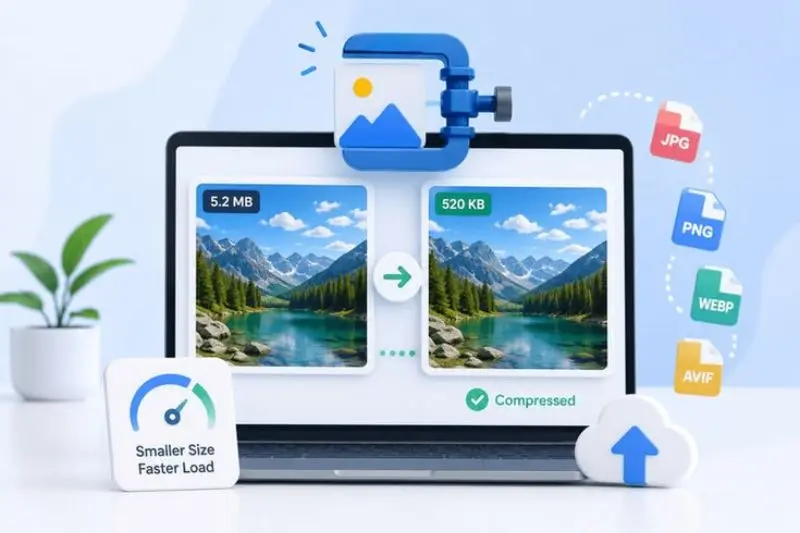
- Managing digital files efficiently has become more important than ever. As people create more documents, photos, videos, and other digital content, storage problems and slow file transfers are becoming common challenges. Fortunately, file compression tools provide a practical solution by helping users reduce file size, save storage space, and share information more easily.
- A reliable file compression tool allows beginners and professionals to organize their data without complicated processes. Whether you are compressing a folder of documents, reducing image sizes, or creating backups, these tools make file management faster and more convenient.
- The right compression method depends on your needs. Lossless compression is ideal when maintaining complete accuracy is important, while lossy compression can be useful when smaller file sizes matter more than perfect quality. Understanding these differences helps users choose the best approach for each situation.
- Throughout this guide, we explored how file compression works, why it matters, the best ways to use compression software, and the benefits and limitations involved. We also discussed common mistakes and expert tips that can improve your overall experience.
- By using compression wisely, you can keep your devices organized, improve file-sharing speed, and make better use of available storage. Instead of struggling with large files, you can take control of your digital content with simple and effective solutions.
- Ultimately, file compression is not just about making files smaller. It is about creating a smarter way to store, manage, and transfer information in today’s digital world.